
The advanced search form can be found by clicking on the “Advanced Search” item in the “Music” menu or by clicking on the “Advanced Search” link on the song list page.

- Keywords: Type portions or song title, artist name or any other text shown on a song page. You may also drag and drop or paste a Spotify or Apple Music song share link into this field to go directly to a song. This is the same field described in Simple Search. If you are interested in doing a more sophisticated text search, click on the “more” button and read about text searching below.
- Filter by Dance Styles: You can choose to filter songs that are tagged as any of a set of dances or to filter songs that are tagged as all of a set of dances. Click on any or all buttons to go between these two modes and choose dances from our list of supported dance styles by clicking on the dance style control and either typing in dance styles or selecting from the list presented.
- Filter by tags: You can filter by musical genre, tempo, style, or other tags using the Include/Exclude tag controls. Click on either of the drop-down controls and start typing a tag name to choose a tag to include or exclude. Learn more about the music4dance tagging system on our Tag Definition, Tag Editing, and Tag Filtering pages. Not pictured here is a toggle to “Exclude Dance Tags” – by default all tags will be filtered, both the Tags applied directly to the song and the Tags applied to the Dance Style for a song. Enabling the toggle will include only the tags directly on the song in the search.
- Filter by Tempo: Enter a tempo in beats per minute in either or both of the minimum and maximum tempo boxes. If you leave the minimum tempo box blank, the filter will include all songs with tempi up to the maximum tempo. If you leave the maximum tempo box empty, the filter will include all the songs with tempi faster than the minimum tempo. Use the tempo counter to convert if you think in Measures (or Bars) per Minute rather than beats per minute.
- Length: Enter the length of the song (in seconds) that you’d like to filter on.
- Filter by User Activity: If you know the user name of someone who’s opinions you value, you can filter on their activity. zOtherwise, you must create an account and be signed in to use this feature to filter on your own activity. You can type the user name into the first box or type “me” to filter on yourself. The options are as follows:
- Don’t filter on my (or username) activity: This doesn’t filter on user activity; this is the same as not entering a user name in the first box.
- Include all songs I (or username) voted for [dance name]: This option is only available if you chose a single dance in the dances section. In that case, you can find exactly the songs that the specified user voted as danceable to the selected dance style. See Searching for only the songs that someone has voted for.
- Include all songs I (or username) voted against [dance name]: This option is only available if you chose a single dance in the dances section. In that case, you can find exactly the songs that the specified user voted as not danceable to the selected dance style. See Searching for only the songs that someone has voted for.
- Include all songs in my (or username’s) favorites: List the songs that you or a specific user have explicitly added to your favorites list.
- Exclude all songs in my (or username’s) favorites: List the songs that you or a specific user have not explicitly added to your favorites list.
- Include all songs I (or username) tagged: List all of the songs you (or username) have tagged in any way, including adding a tag, voting up or down on a dance, adding to favorites, or commenting on the song.
- Exclude all songs I (or username) tagged: Filter out all of the songs you (or username) have not touched in any way, including adding a tag, voting up or down on a dance, adding to favorites, or commenting on the song.
- Included all songs in my (or username’s) blocked list: Include all songs that you have previously blocked.
- Exclude all songs in my (or username’s) blocked list: Filter out all songs that you have blocked.
- Filter by Music Service: If you are interested in only songs that have been indexed in one of our supported music streaming/purchase services, click on one or more of these checkboxes.
- Bonus Content: This is a premium-only feature. You must be a current paid subscriber in order to access this functionality. See the Bonus Content for more details.
- Sort By: Choose Title, Artist, Tempo or Dance Rating, Last Modified, When Added, When Edited, Energy, Mood, Strength of Beat, or Closest Match to sort by that column and Ascending or Descending to order the sort alphabetically, numerically, or by data as appropriate.
- Submit: Perform the advanced search based on the settings you’ve specified.
- Reset: If you want to start over, the Reset button will clear the form.
Text Searching
If you want to search specifically in certain fields, you can click the “more” button in the keywords section and get some additional options. Each of the new text entry fields corresponds to a field in the music4dance database. When you enter text into one of these fields, it will only return songs that contain the text in that database field. So if you want to find only songs that include the word “Prince” in the title, but not songs that were created by Prince, the artist, you would type “Prince” in the title keyword field.
To get back to the more general keyword search, just click reset or clear the Title, Artist, and Album fields.
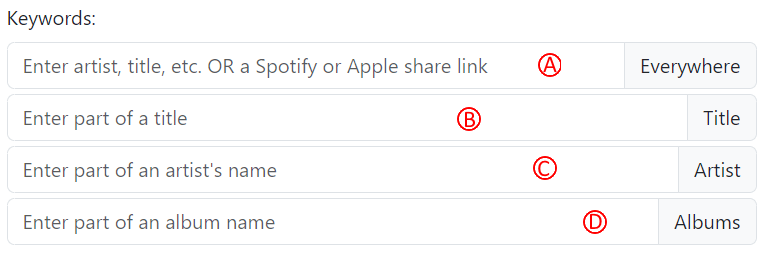
- Everywhere: This will search for text throughout the song details page. It is equivalent to the simple search control and the simple test search control.
- Title: Searches only in the title field
- Artist: Searches only in the artist field
- Albums: Searches only in the albums field
Dance Details
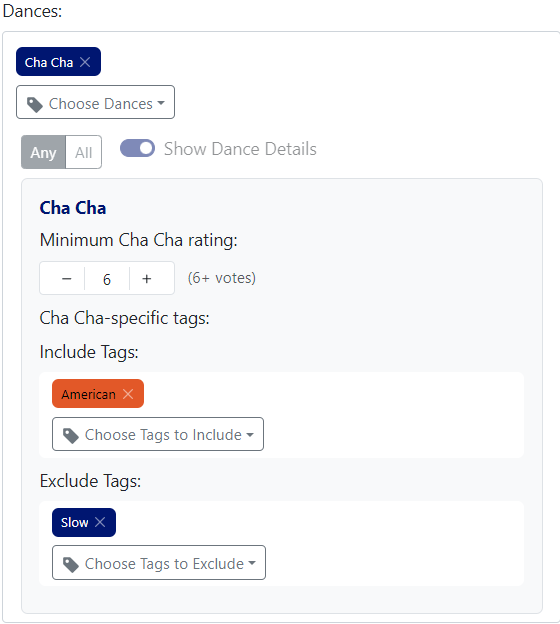
Once you’ve chosen to filter on at least one dance, you can toggle on the “Show Dance Details” option to refine that filtering in two different ways.
Dance Rating/Votes:
You can choose the minimum number of votes to filter by. This is a common way to narrow down the list of songs when you’re doing a more sophisticated search.
Tags
You can include or exclude dance-specific tags in a way very similar to how song tags are managed above. The difference is that these tags are only filtered when they are applied to the specific dance being edited. This allows for doing things like filtering on all “Slow” Cha Chas and not picking up songs that were tagged as “Slow” Salsas and untagged Cha Cha.
 music4dance